
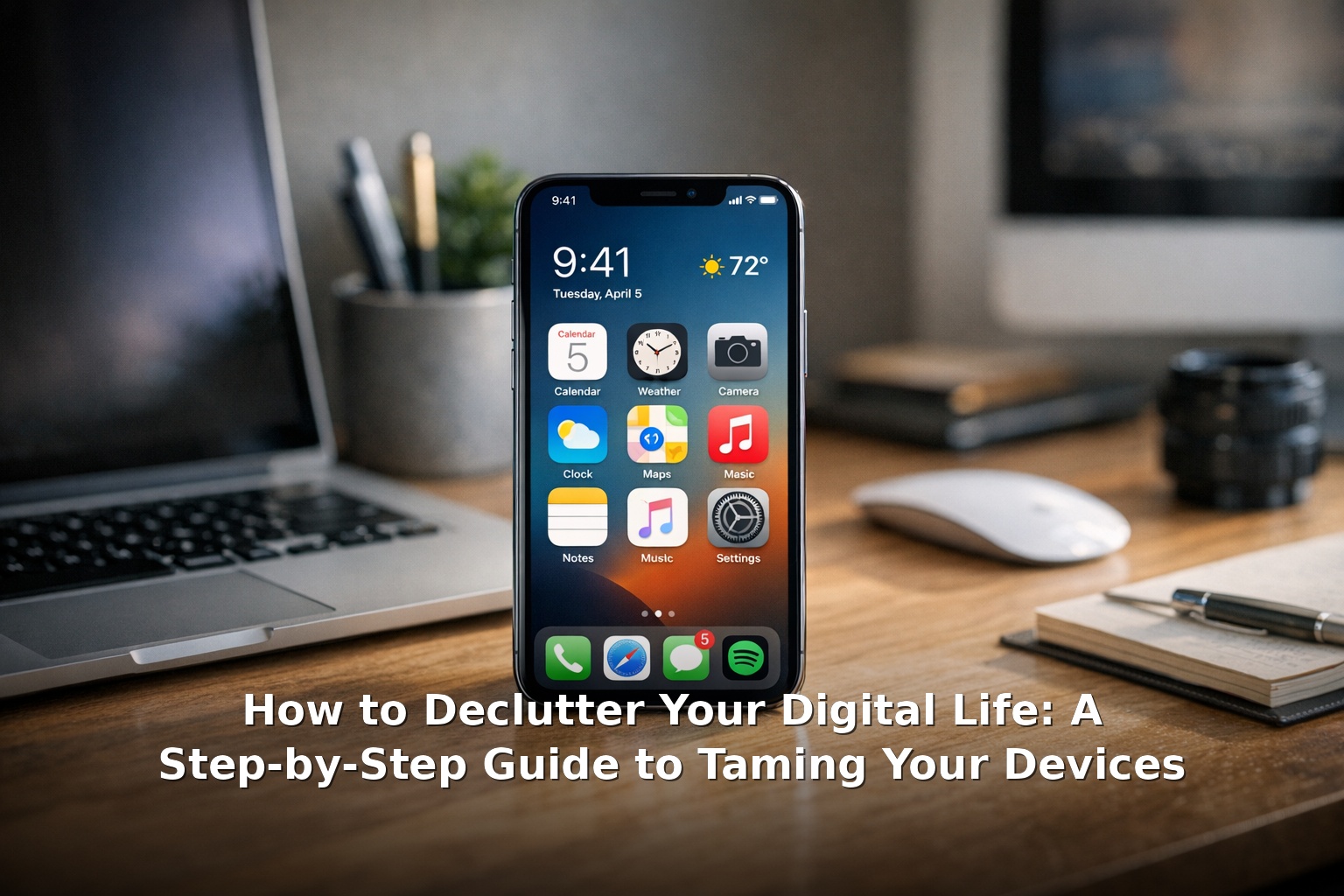
How to Declutter Your Digital Life: A Step-by-Step Guide to Taming Your Devices
Let’s be honest for a moment. When was the last time you opened your phone gallery and actually knew what was in there? Or scrolled through your email without that knot of dread forming in your stomach? If your answer is “I can’t remember,” you’re in very good company. For more insights, Google digital wellbeing tools.
We’re a nation of digital hoarders. Between the 6,000 unread emails, the 14,000 photos we’ll never look at again, and the 47 apps we downloaded once and forgot about, our digital lives have become a mess. And it’s not just annoying — it’s costing us time, focus, and wellbeing. The NHS Every Mind Matters campaign highlights how digital noise contributes to stress and anxiety (nhs.uk/every-mind-matters).
So grab a cup of tea and let’s walk through how to declutter your digital life together — one step at a time. No judgment, just a calmer relationship with your devices. For more insights, Apple Screen Time guides.
Quick Answer: The Three Biggest Digital Clutter Problems
Before we dive into the full guide, here’s a snapshot of what we’re dealing with: For more insights, Google digital wellbeing tools.
- Your phone is a digital junk drawer. Thousands of duplicate photos, abandoned apps, and notifications that ping you for no real reason. It’s the single most cluttered device most of us own.
- Your inbox is overflowing. Newsletters you never signed up for (or signed up for once in 2017 and have been meaning to unsubscribe from ever since), automated alerts, and mountains of “read later” emails that never get read.
- Your files are scattered everywhere. Screenshots on the desktop, documents in three different cloud storage services, a downloads folder with 800 files from the last four years. Finding anything feels like a treasure hunt.
The good news? Each of these problems takes less than an hour to fix — and the relief is instant. Here’s exactly how to do it. For more insights, NHS digital detox tips.
Why Digital Clutter Costs You Time and Focus
You might think a cluttered phone is a minor annoyance. But every unnecessary icon, notification badge, and open tab is a tiny cognitive load — a piece of your attention held hostage. Your brain has finite mental energy each day, and when you’re constantly sorting through digital junk, you’re burning that energy on noise rather than what matters. It’s like cooking dinner in a kitchen where every drawer is full of old takeaway menus. For more insights, Apple Screen Time guides.
A 2023 survey by the mental health charity Mind found that 60% of UK adults said the constant flow of digital information left them feeling overwhelmed. That’s more than half of us. When you learn how to declutter your digital life, you’re not just organising files — you’re giving your brain some breathing room. For more insights, NHS digital detox tips.
Step 1: Clean Up Your Phone — Photos, Apps, Notifications
Your phone is the front line of digital clutter. Let’s start here.
Related Posts:
- Aw Shit Here We Go Again The Famous GTA San Andreas Quote

- Oh Shit The Universal Phrase for Realizing a Mistake

- How to Say Shit in German Common Slang and Translations

- Rap Shit The HBO Max Comedy Series About Female Rappers

- The Wildest Crazy Shit You Have to See to Believe

- Hitori no Shita The Outcast Anime and Manga Series Explained

Photos
Open your gallery and be honest. Do you really need three versions of that blurry cat photo? Or 47 screenshots from Instagram? No, you don’t.
- Use the built-in cleaner. Google Photos and Apple Photos can find blurry shots, screenshots, and duplicates for you (wellbeing.google, apple.com/uk/screen-time).
- Be ruthless but kind. If a photo doesn’t spark joy or serve a purpose, delete it. The memories that matter stay with you — they don’t need to live on your phone.
- Back up and purge. Move your favourites to a cloud service or external hard drive, then clear your phone’s local storage.
Apps
- Delete anything you haven’t opened in 90 days. You can always re-download it — but spoiler: you probably won’t.
- Keep only essentials on your home screen. Aim for one screen max. Everything else lives in the app library or a single folder.
- Beware of “I’ll use this someday” apps. If you haven’t opened them in three months, they’re just taking up space.
Notifications
This is the big one. Every ping, buzz, and badge is a bid for your attention. Most of them don’t deserve it.
- Go into Settings > Notifications and turn off everything non-essential.
- Use notification summaries on iOS or Android so you check messages on your terms.
- Disable badge icons for social media — those little red numbers are engineered to hook you. Deny them the satisfaction.
Step 2: Tame Your Email Inbox — Unsubscribe, Filter, Archive
Email is where digital clutter breeds. Left unchecked, it multiplies fast. Here’s how to take back control.
Unsubscribe — the Hard Way
Set aside 20 minutes. Open your inbox, go to the oldest email you can find, and start working forward. Every time you see a marketing email you don’t actively want, click unsubscribe. Yes, it’s tedious. Yes, it’s worth it. For speed, try Unroll.Me (free, bulk unsubscribe) — just be aware it reads your email metadata, so check the privacy policy if that concerns you.
Filter and Sort
Set up automatic filters in Gmail or Outlook for emails you can’t unsubscribe from but don’t need to see immediately — bank statements, delivery notifications, appointment reminders. Label them, archive them. They’ll be there when needed without cluttering your main inbox.
The Archive Button is Your Friend
If an email doesn’t need a reply, action, or reference, archive it. Not “leave it in the inbox to deal with later.” Archive it. Inbox zero isn’t a myth — it’s a choice.
Step 3: Organise Your Computer Files — Folder Structure, Desktop Zero
Remember when your desktop was a clean landscape with maybe a single wallpaper? When did it become a dumping ground for 400 screenshots, a dozen PDFs downloaded “for later,” and that Word document from 2019 you’re afraid to delete?
Design a Simple Folder Structure
You don’t need a complex system. Most people just need three folders:
- Work — sub-folders by project or client
- Personal — finances, health, home, family
- Archive — everything old you can’t bear to delete but don’t need day-to-day
If a file doesn’t fit into one of these, ask yourself whether it needs to exist at all.
Achieve Desktop Zero
Your desktop is a workspace, not a filing cabinet. Aim for zero files on it — or at most, a handful of active projects. Sort by Date Modified and move anything older than 30 days into Archive. You’ll be amazed at how much space this frees up, both on your drive and in your head.
Step 4: Manage Your Cloud Storage
Cloud storage is a blessing and a curse. It means we never delete anything — so of course, we never do. Google Drive, Dropbox, iCloud, OneDrive — your files are scattered across services you forgot you signed up for.
- Pick one primary cloud service and consolidate everything there. The others become secondary for specific uses (e.g., iCloud for Apple backups).
- Review shared folders. Still collaborating on a project from three jobs ago? Unlink it. Those files are not your responsibility anymore.
- Use the same folder structure as your local files. Consistency is the secret to staying organised.
- Set a storage target — say, 50% of your free quota — and make a game of getting under it. Delete duplicates, old versions, and files you don’t recognise.
Step 5: Reduce Notification Noise
Notifications are designed by some of the smartest engineers to pull you back into apps. They are not your ally. Ask yourself: does this notification serve me, or does it serve the app?
- Use Do Not Disturb (or Focus Mode) as your default. Let calls from your contacts ring through; let everything else wait until you choose to check it.
- Schedule notification-free blocks using Google Digital Wellbeing or Apple Screen Time — periods when only essential apps can notify you.
- Turn off read receipts. You don’t owe anyone an instant response.
Step 6: Schedule a Quarterly Digital Declutter
Here’s the thing nobody tells you about how to declutter your digital life: it’s not a one-time event. It’s like cleaning your kitchen — you can deep-clean once, but if you never wipe the counters again, things get messy quickly.
Set a recurring calendar event for the first Sunday of every quarter: “Digital Declutter Hour.” In that hour:
- Delete photos you don’t need
- Unsubscribe from new newsletters that have accumulated
- Clear your downloads folder
- Review and delete unused apps
- Check your cloud storage for stray files
One hour, four times a year. It’s a small investment that pays enormous dividends in focus, calm, and the quiet satisfaction of knowing exactly where everything is.
Tools That Help
You don’t need a lot of fancy software, but a few tools can make the process easier:
- Google Digital Wellbeing (wellbeing.google) — app timers, Focus Mode, and Wind Down schedules built into Android.
- Apple Screen Time (apple.com/uk/screen-time) — the iOS and macOS equivalent. Downtime, app limits, and communication limits.
- Unroll.Me — bulk unsubscribe from email newsletters in one go.
- OneDrive / Google Drive storage insights — built-in tools to find large files, duplicates, and old versions you can safely delete.
The NHS Every Mind Matters website also has a free My Mind Plan tool that helps you build a personalised plan to manage digital overload (nhs.uk/every-mind-matters).
How to Stay Decluttered
The hardest part isn’t the initial clean — it’s staying on top of it after the buzz of a fresh start wears off. Here are habits that genuinely help:
- The One-In-One-Out Rule. Every time you download a new app, delete an old one. Every time you save a file to your desktop, file an existing one away. This stops clutter before it starts.
- Weekly 5-Minute Reset. At the end of each week, spend five minutes closing browser tabs, clearing your desktop, and archiving read emails. It prevents the slow creep of digital chaos.
- Be intentional about what you allow in. Before subscribing to a newsletter, ask: “Will I actually read this?” Before downloading an app, ask: “Will I use this at least once a week?” You get to choose what enters your digital space.
- Give yourself grace. Nobody maintains a perfectly organised digital life. We all have moments where our inbox gets out of hand or our downloads folder becomes a wasteland. The goal isn’t perfection — it’s progress.
Short FAQ
How long does it take to declutter your digital life?
The initial deep clean takes most people 2–4 hours. Break it into 30-minute sessions over a week if that feels more manageable. The quarterly maintenance hour is enough to keep things under control long-term.
Do I really need to delete my photos?
Not all of them — but you don’t need to keep every blurry screenshot, duplicate shot, or random image. Keep what genuinely matters; let the rest go. Your phone (and your sanity) will thank you.
What if I’m worried about deleting something important?
That anxiety is normal. Back everything up to an external hard drive or cloud archive before you start deleting. In practice, almost nobody goes back to retrieve those files — but the safety net helps you declutter with confidence.
Are the tools safe to use?
Google Digital Wellbeing, Apple Screen Time, and NHS Every Mind Matters are all free, reputable, and safe. Third-party tools like Unroll.Me are widely used but do read your email metadata — read their privacy policy if you’re concerned. For photo-cleaning, stick with your device’s built-in tool.
I’ve tried before and failed. How do I make it stick?
Start smaller. Don’t try everything at once. Pick one thing — clearing your desktop — and do that. When it’s done, move to the next. The key isn’t willpower; it’s systems. The quarterly declutter and the weekly 5-minute reset are what make it sustainable. You’ve got this. For further reading, latest information on How to Declutter Your Digital Life: A Step-by-Step.
Your digital life should serve you, not stress you. By taking these small, intentional steps, you’re not just tidying up files and apps — you’re reclaiming your time, your focus, and your peace of mind. That’s what learning how to declutter your digital life is really about.latest information on How to Declutter Your Digital Life: A Step-by-Step.
Now go forth, unsubscribe from that newsletter you never read, and enjoy the quiet. You’ve earned it.
 Marcin Wieclaw